Showing posts with label Google. Show all posts

Tuesday, September 3, 2013

Official: The next edition of Android is “KitKat,” version 4.4

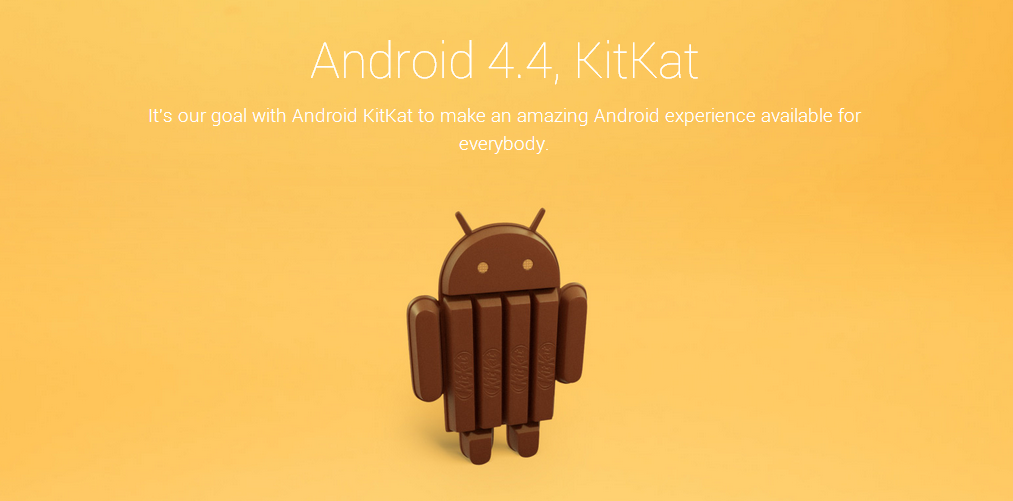
Android-KitKat-640x426

This is not a joke. The next version of Android will be called "KitKat." The above picture is not a photoshop, it's an actual picture shared by Sundar Pichai, the head of Android, on Google+. Google has also launched a website for KitKat at android.com/kitkat/. Right now the site only features a small history of Android and the following announcement:

Android is the operating system that powers over one billion smartphones and tablets. Since these devices make our lives so sweet, each Android version is named after a dessert: Cupcake, Donut, Eclair, Froyo, Gingerbread, Honeycomb, Ice Cream Sandwich, and Jelly Bean. As everybody finds it difficult to stay away from chocolate, we decided to name the next version of Android after one of our favorite chocolate treats, Kitkat®!

Yes, this is an actual cross-branding initiative with Nestle's KitKat. The Android site links back to kitkat.com, and KitKat is celebrating the renaming with a new Facebook Profile picture. Nestle will be releasing a limited edition Android KitKat bar, with Willy Wonka-style winning tickets for a new Nexus 7 or Google Play credits.

For almost a year, the community believed the next version of Android would be called "Key Lime Pie," but apparently Google just loves to keep its fanbase guessing.

2013-09-03_12-56-39-640x316

Enlarge

The bottom of the Android page pegs this version as "4.4" and shows off the official logo. There will no doubt be news about this all day, hopefully including the traditional unpacking video. Stay tuned to Ars and we'll continue update this post or compose another as more information becomes available.

Tuesday, August 27, 2013

How to Encrypt your Gmail Messages with Google Docs


Lately there has been a lot of chatter about email tracking and how government agencies are snooping on email conversations. If you are looking for ways to keep your email private and would not like anyone else to read your confidential Gmail messages (except for the recipient), you should consider encrypting your email before hitting the send button.

There are a couple of browser extensions that help you encrypt Gmail but here we discuss a new and more simple Google Docs based encryption method that works across all browsers and requires no add-ons or apps. You secure your message with a strong password and the recipient will have to enter the same password in order to decrypt your message.

For the technically oriented, our Google Docs based solution encrypts (and decrypts) your email messages using the industry-standard AES algorithm which is implemented in Google Apps Script using SJCL, a JavaScript library for cryptography developed at Stanford.

How to Encrypt Gmail Messages
Sender’s Computer – Encrypt the message before sending
 
1)  Open Gmail and compose a new email message. Put the recipient’s email address in the “To” field, add a subject (this won’t be encrypted) and put your message in the email body. DO NOT hit the send button, let the message stay in your Gmail drafts folder.

2) Click here to make a copy of the “Encrypt Gmail” sheet in your Google Drive. Choose Gmail->Initialize and allow the sheet to access your Gmail account.
 
3)  Pick your Gmail draft from the drop-down, enter a password and hit “Send Mail.”


The Google Sheet will now encrypt your email message using AES and it gets delivered to the recipient via your Gmail account. Let’s now switch to the recipient’s machine and see how they can decrypt the message.
Recipient’s Computer – Decrypt the encrypted Gmail Message

1) Open the encrypted Gmail message that just landed in your mailbox, select the body of the email and copy it to your clipboard.
2) Go to Decrypt Gmail, enter the secret password (that the sender shared with you over a phone call) and paste the encrypted email message. Hit the “Decrypt” button to see the original message.

Encrypting email with Google Docs is easy and the other advantage is that recipients can decrypt the encrypted message using any browser without requiring apps or browser add-ons.


One more thing. When you write a draft message inside Gmail, it is automatically stored on Google’s servers. If you would like to keep Google out of the loop, you can write the message outside Gmail (say inside Notepad) and encrypt it offline before sending the message via Gmail.

You can also use these encrypt and decrypt tools to send confidential messages on other channels like Facebook, Outlook, Yahoo Mail, etc. These tools encrypt & decrypt text inside your browser and none of your data ever leaves the local computer. ↓
 
Blogger TemplateAnyThingOnCloud © 2013. All Rights Reserved. Powered by Blogger
Top